

Guest post by Helen Kolikhova, VP of Expansion at CampusAI
Record yourself once, and your AI twin can keep talking for you: in sales follow-ups, client onboarding and content, in whatever language you need. Below, Helen Kolikhova from CampusAI shows step by step how she built hers in HeyGen.
A New Era Begins
The days when avatars were associated only with blue characters from science fiction films or were merely graphic representations of players in virtual worlds are long gone.
Today, avatars are becoming our digital counterparts, capable not only of looking like us or speaking in our voice, but even of literally cloning us in places where we cannot be present at the moment. Our avatars do not sleep and can be available around the clock, which, as you can imagine, makes scheduling much easier, even for the busiest people or across different time zones. Unbelievable?
My digital twin became a key factor in helping me land my dream job. I “hired” her to read my cover letter in English. In this case, it was not that I could not do it myself, but it felt like an interesting way to stand out. And in a competitive hiring process, standing out is crucial. It worked. Thanks to my avatar, my professional career entered a completely new and exciting stage.
In this article, I will show you how you can create your own avatar and discover the new opportunities offered by advanced technology.
Before You Start: Where an Avatar Fits in Sales
Added by the Grinfi team
Helen's twin read a cover letter. In sales, the same trick saves the most time wherever you'd otherwise record one video over and over:
- Onboarding and walkthroughs. Record once, update the script when the product changes.
- One pitch, many languages. Your face and your voice, in German or Spanish, from one script.
- Leads who went quiet. A short video update gives a stalled thread a reason to come back. Here the avatar has to be close to flawless. A lead who already spoke with you knows your face and voice, so slightly off lip sync or a frozen stare pushes the video into the uncanny valley, and a lukewarm lead stops replying altogether. Record your source footage in good light, at 1080p, for at least two minutes, and watch every video before you send it.
- Event follow-ups. Everyone you met at a conference gets a recap the same afternoon.
One place to hold back: the first cold message. A stranger's first question is whether a real person wrote to them. Animoto's State of Video 2026 report found that 78% of people trust videos with real people more than AI-generated ones, and some B2B agencies report lower reply rates for avatar videos in cold sequences. So record yourself for the first conversation, let the avatar scale what comes after, and say openly that it's your AI twin.
Now, here's how to build one.
Step 1. Create an Account
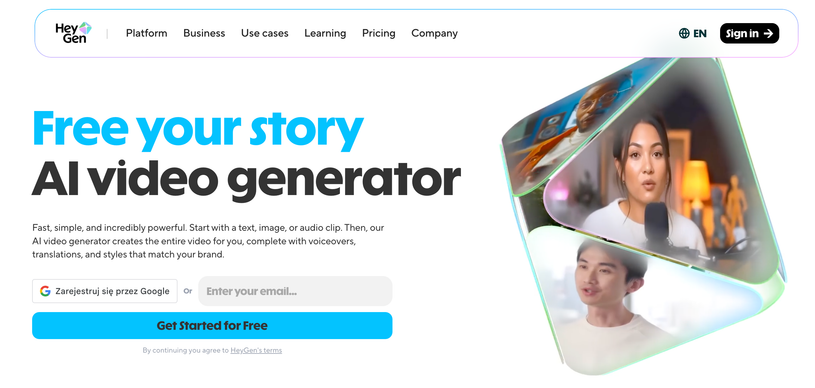
To get started, you need to create an account at heygen.com and answer a couple of questions about your role. To build your own basic avatar, the standard “Free” plan is sufficient. Keep its limits in mind: one to three videos a month depending on your region, each up to one minute long, exported in 720p with a HeyGen watermark, and one slot for your own video avatar.
Step 2. First Steps
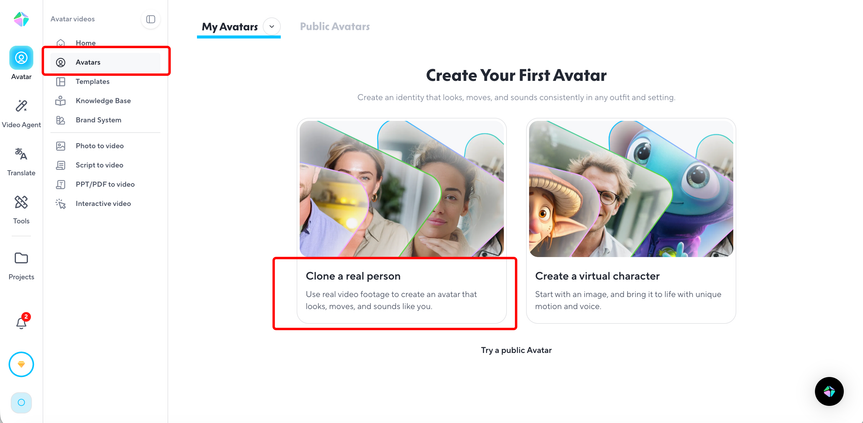
Next, open the “Avatars” section, click “New Avatar” (on a new account you will see “Create Your First Avatar” right away) and choose “Clone a real person.” This is a quick way to create your own avatar. You will be redirected to the creator page.
Step 3. Get Ready to Record
You will have the option to record yourself using your webcam, record with your phone, or upload a pre-recorded video in which you speak for at least 15 seconds. Here are some guidelines to help you achieve better video quality.
Step 4. Record the Video
You can do this using an external device such as a camera or phone, or with your computer’s webcam. I strongly recommend using a high-resolution camera, as it will significantly improve the quality of your avatar.
Wondering what to talk about? You can share your life story, describe a typical day at work, or even give a recipe for carrot cake. At this stage, the topic does not matter at all. What matters most is that you feel comfortable and can speak naturally in the language of your choice.
Step 5. Review the Recording
Check whether the recorded video meets your expectations. Pay attention to the lighting, the audio volume, and your overall appearance. If you are not satisfied, record it again.
Step 6. Upload the Video
Upload your recording to the platform and confirm that it meets all the requirements. Is your face visible at all times? Are you looking directly into the camera? Is the environment well lit and quiet? Great. Now simply click “My Footage Looks Good.”
Step 7. Verify Your Identity
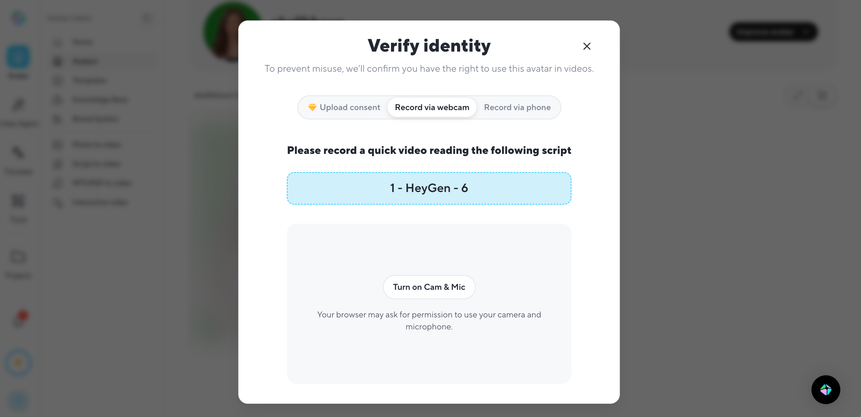
To use your avatar in videos, you will need to verify your identity on HeyGen. Click on “Avatars” and select the video you uploaded. You will then see a prompt asking you to verify your identity. Record a short video in which you read the script displayed on your screen.
This is a consent video: it has to show the same person as your footage, stay under 30 seconds and be read exactly as written. HeyGen rejects screen recordings and videos that are too dark or blurry.
Step 8. Create With AI Studio
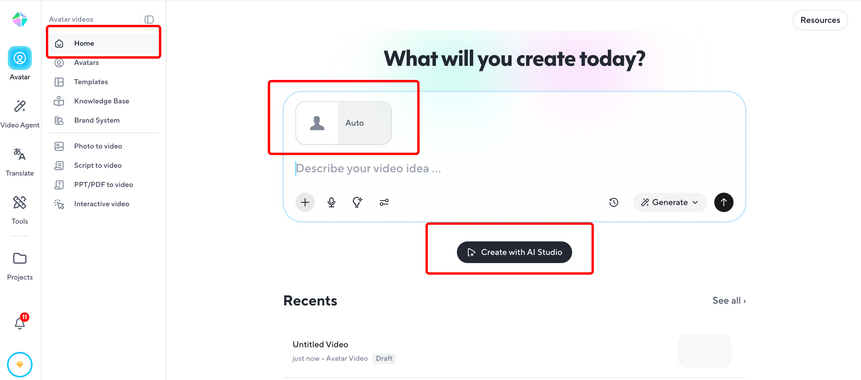
Once your avatar is ready, you can start creating the content it will deliver on your behalf. Simply go to your home page, select your avatar, or choose another HeyGen avatar, and click “Create with AI Studio.”
Step 9. Prepare the Script
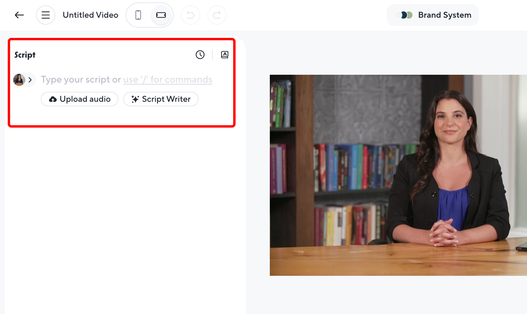
Prepare the script, which is the text your avatar will speak. You can write it yourself, use the automatic “Script Writer” generator, or upload an audio file. Interestingly, the assistant can help not only with writing the text but also with adjusting its style. Longer or shorter, less casual, or perhaps more engaging?
Customize Voice and Language Settings
HeyGen offers several options that allow you to tailor the script to your needs. You can adjust the speaking speed, pitch, and volume, as well as add pauses, all to make the voice sound as natural as possible.
If you are not satisfied with the generated voice, you can upload your own recording or record directly in the script editing window. This is a useful middle ground if you feel confident about your voice but not about your body language, or if being on camera makes you nervous.
What is more, you can translate your prepared script into virtually any language. Would you like to introduce yourself to your clients in Tagalog? Go ahead. Kaya simulan na natin!
Experiment freely. You can add pauses between sections, enrich the recording with additional text, or include visual elements. The possibilities are endless.
Step 10. Submit Your Video
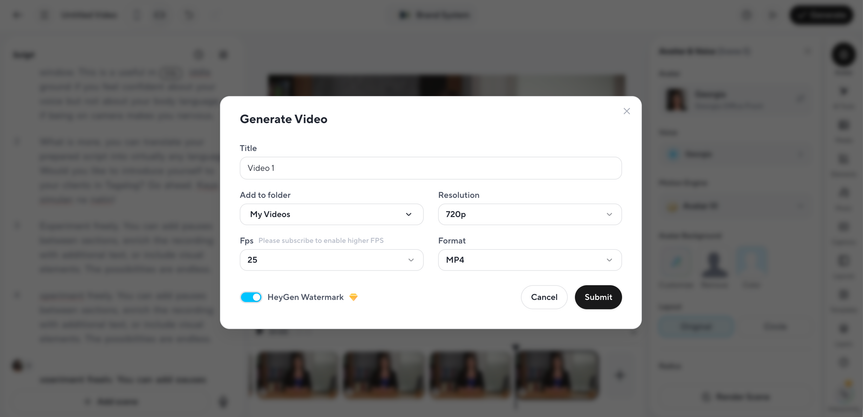
Once you have completed all the steps and are satisfied with the final result, simply click “Submit.” HeyGen will then inform you about the cost of generating the video, expressed in the number of credits used. The generation process takes a few minutes, so please be patient.
In the free version, you can create videos only in 720p resolution and they will include a HeyGen watermark. On the paid Creator plan, you can export videos in 1080p without the watermark, and 4K export starts from the Pro plan.
The cost depends on the length of the video and on the avatar model you choose: newer models such as Avatar IV and Avatar V use considerably more credits per minute than Avatar III. HeyGen shows the exact cost before you confirm.
Step 11. Final Touches
When your video is ready, you can make final adjustments before publishing, such as adding subtitles or a transcription. HeyGen allows you to download the video to your device, either in its original version or with subtitles, as well as publish it directly to social media platforms.
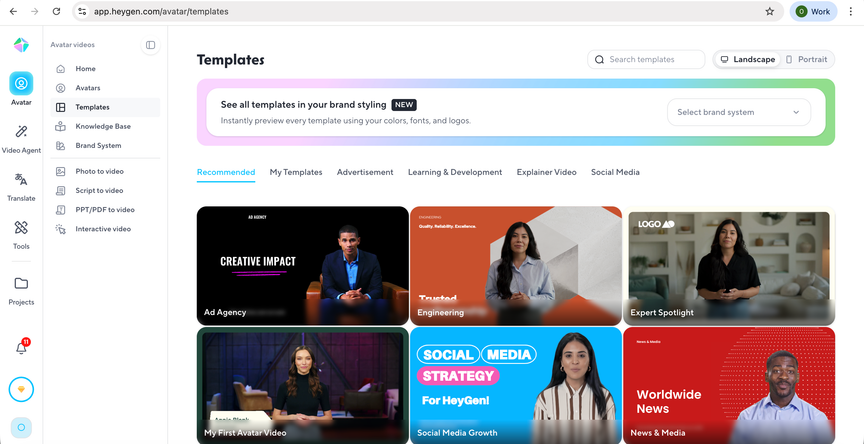
Remember that you can also use templates provided by HeyGen in the “Templates” section. You can use them to create your video, replacing elements with HeyGen avatars or adding your own avatar.
Step 12. Professional Avatar
HeyGen also offers professional avatars that require a prior studio recording. If your needs go beyond the instant avatar option, it is worth exploring this part of HeyGen’s offer as well.
Want to Discover More AI Tips?
CampusAI is an AI learning platform for non-technical professionals. We show you how to use AI tools in your everyday work, so you quickly become more efficient and see real results.
With us, you get knowledge, practical tools and support in one place, helping you build your skills step by step, at your own pace.
Join CampusAI and start achieving your goals with AI: www.campus.ai